How to Fix App Store Connect Screenshot Dimension Errors for 6.9-Inch and 13-Inch Displays
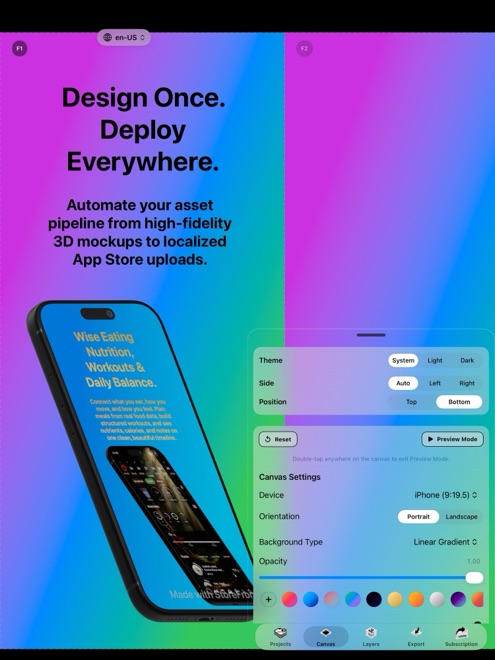
Seeing App Store Connect reject a screenshot folder with "The dimensions of one or more screenshots are wrong" usually means a file is off by a single Retina pixel, saved at 1x instead of 3x scale, or uploaded into the wrong display slot. StoreFront Studio locks every export to Apple's exact required pixel grids so one 3D layout outputs compliant 6.9-inch iPhone, 6.5-inch iPhone, and 13-inch iPad sets automatically.
Exact pixel dimensions required by App Store Connect in 2026
App Store Connect does not resize arbitrary aspect ratios on upload. Each display slot accepts only specific portrait and landscape pixel dimensions. If an artboard exports at 1321 x 2868 px due to sub-pixel positioning in a vector tool, the entire file is rejected.
| Display Slot | Accepted Portrait Dimensions | Accepted Landscape Dimensions | Scaling Behavior in Store |
|---|---|---|---|
| 6.9-inch iPhone (Primary) | 1320 x 2868 px or 1290 x 2796 px | 2868 x 1320 px or 2796 x 1290 px | Scales down automatically to smaller iPhone sizes |
| 6.5-inch iPhone (Fallback) | 1284 x 2778 px or 1242 x 2688 px | 2778 x 1284 px or 2688 x 1242 px | Used when 6.9-inch slot is left empty |
| 13-inch iPad Display (Primary) | 2064 x 2752 px or 2048 x 2732 px | 2752 x 2064 px or 2732 x 2048 px | Scales down automatically to smaller iPad sizes |
How to fix wrong-dimension errors in 4 steps
Instead of manually resizing exported PNGs in Preview—which distorts text and stretches device bezels—generate the target sizes straight from one responsive 3D canvas.
- Open StoreFront Studio on your Mac, iPad, or iPhone (iOS 26+) and import your clean UI captures.
- Place your iPhone captures on a RealityKit 3D iPhone model and your native iPadOS captures on a 3D iPad model.
- Step through the built-in 6.9-inch iPhone, 6.5-inch iPhone, and 13-inch iPad output presets to verify headline line wraps and margins.
- Export flattened, exact-pixel files (or push straight to App Store Connect via API) using StoreFront Studio Pro so outputs carry zero watermarks.
Why window-captured Simulator images fail upload checks
Taking a macOS screenshot of the Xcode Simulator window (`Command-Shift-4` then Space) captures the macOS window shadow and bezel rather than the internal iOS framebuffer. Always press `Command-S` inside Simulator so Xcode saves the exact native device pixel dimensions.
Why does my 6.9-inch iPhone screenshot fail when uploaded to the 6.5-inch slot?
Each slot enforces its own strict pixel table: 1320 x 2868 px belongs in the 6.9-inch slot, whereas the 6.5-inch slot expects 1284 x 2778 px or 1242 x 2688 px.
Do I have to upload both 1320 x 2868 px and 1290 x 2796 px to the 6.9-inch slot?
No. Pick one accepted resolution per slot and keep all screenshots in that slot consistent.
Can StoreFront Studio push each resolution to its matching App Store Connect slot automatically?
Yes. Using your local Keychain App Store Connect API key, StoreFront Studio matches every rendered size and locale to its exact slot.