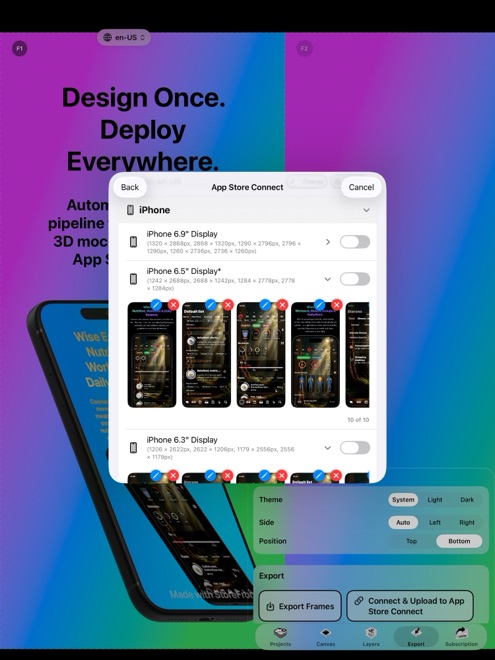
Bulk Upload App Store Screenshots via API Key
Dragging ten screenshots across three device sizes and fifteen languages means manually sorting four hundred and fifty image files in a browser window. One wrong folder drops French iPad images into the German slot and forces a tedious cleanup. StoreFront Studio pushes every localized screenshot and display size straight to App Store Connect in one bulk upload using Apple's official API.
Why browser drag-and-drop breaks down on multi-locale releases
App Store Connect's web interface makes you switch language dropdowns one by one, wait for previous slots to clear, and drag files in exact visual order. A tiny headline typo discovered after uploading ten locales means repeating the entire ritual from scratch.
Apple's official App Store Connect API solves this cleanly by matching each rendered asset to its exact target locale code, display type, and slot order over TLS.
Generate an App Store Connect API key in four steps
Instead of asking for your Apple ID password or two-factor codes, StoreFront Studio authenticates with a standard App Store Connect API key consisting of an Issuer ID, a Key ID, and a downloadable .p8 private key file.
Apple lets you download each .p8 file only once when creating it, so store a safe copy alongside your release credentials.
- Sign in to App Store Connect, open Users and Access, and switch to the Integrations tab under App Store Connect API.
- Generate a new Team Key with App Manager or Admin permissions so it is authorized to create and replace version screenshot sets.
- Copy your Issuer ID at the top of the page, copy the new Key ID, and download the AuthKey_<KeyID>.p8 private key file.
- Import the Issuer ID, Key ID, and .p8 file into StoreFront Studio on your iPhone, iPad, or Mac.
Understand how your API credentials stay protected
Handing an API key to a third-party web SaaS means uploading live store credentials onto someone else's cloud database. Because StoreFront Studio runs natively on iOS 26, iPadOS, and macOS, your credentials stay on your own hardware.
The app stores your Issuer ID, Key ID, and .p8 private key inside the local device Keychain. They are sent exclusively to Apple's App Store Connect API over encrypted TLS when you initiate an upload — never to Arte Soft servers.
- Credentials live inside your local iOS, iPadOS, or macOS Keychain.
- Direct TLS requests from your device to Apple's official API endpoints.
- Remove the key from StoreFront Studio's settings whenever you want.
Prepare your editable version in App Store Connect first
App Store Connect only accepts new screenshot uploads on an app version in an editable state such as Prepare for Submission. Make sure you have created the new version number and enabled every target localization in App Store Connect before starting the push.
Once the upload completes, open App Store Connect in your browser for a quick sixty-second spot check across two or three languages to confirm slot order before submitting your build for review.
Troubleshoot common upload errors in seconds
When an App Store Connect API upload fails on a single slot, the cause is almost always state or permissions rather than network speed: a missing storefront localization on that version, a locked Ready for Sale version instead of a new draft version, or a key created with Developer-only access.
Checking the exact device size and locale named in the error message lets you unlock or add that localization in App Store Connect and re-run the push cleanly.
Does StoreFront Studio ever send my .p8 API key to its own servers?
No. Your Issuer ID, Key ID, and .p8 file remain in the local device Keychain and communicate only with Apple's App Store Connect API over TLS.
Is App Store Connect upload locked behind StoreFront Studio Pro?
The upload tool itself works in the free tier too, though free exports carry a small watermark; upgrade to Pro before pushing clean production screenshots to a live store.
Which App Store Connect role does my API key need?
Use a key with Admin or App Manager access so Apple's API permits modifying app version localizations and screenshot sets.