Common App Store Screenshot Rejections and Fixes
Few moments sting more than passing binary code review only to have your release held back by a preventable screenshot metadata rejection. Most App Review Guideline 2.3 citations come down to half a dozen repeatable mistakes in framing, honesty, or file formatting. Running a five-minute preflight audit before uploading saves a full review cycle.
Keep real in-app UI front and center on every slide
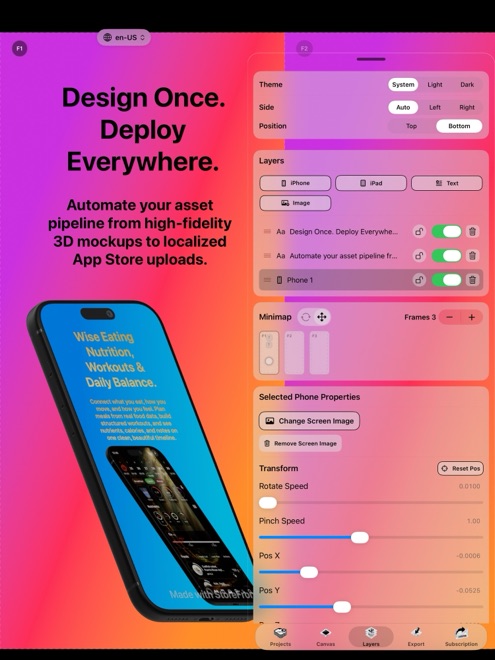
App Store Review Guideline 2.3.3 requires screenshots to show the app in use, not merely title art, splash screens, or lifestyle photography of someone holding a phone on a couch. Marketing headlines and 3D device frames are welcome, provided each screenshot clearly depicts genuine interface functionality.
Never doctor a screenshot to show features that are still on next quarter's roadmap, and avoid presenting invented chat dialogues or mock notifications as real customer endorsements.
- Every slot must display real, shipping in-app UI rather than splash art alone.
- Match hardware frames strictly to the slot (iPhone frames in iPhone slots, iPad frames in iPad slots).
- Remove third-party copyrighted logos, movie posters, or unlicensed brand photos from demo data.
Eliminate technical file errors and tool watermarks
Two mechanical issues stop submissions before a human reviewer even looks closely: PNG files exported with an active transparency channel, and trial watermarks left behind from mockup software.
If you designed your draft in StoreFront Studio's free version, remember that free exports add a small watermark after a rewarded ad. Switch to Pro and re-export clean, flattened RGB files before pushing to a live version.
Run a four-point preflight check before uploading
Checking forty or a hundred localized files goes quickly when you inspect the exact places App Review and shoppers look first.
Do this pass once on your master language and once on your longest translated language before triggering an App Store Connect upload.
- Verify device accuracy: confirm 6.9-inch and 6.5-inch slots show iPhone UI in iPhone frames, and 13-inch iPad slots show genuine iPadOS UI in iPad frames.
- Check claim compliance: remove unverifiable "#1," "free forever" (if paid tiers exist), or competitor brand names from headlines.
- Inspect small-screen readability: confirm 3D angles leave UI controls clear and no translated headline clips against canvas edges.
- Confirm clean output: verify full-bleed opaque backgrounds with zero alpha transparency and zero watermarks.
Fix metadata rejections quickly without a new binary build
If App Review flags a screenshot issue while your binary itself is fine, you often only need to replace the affected screenshot slots and reply or resubmit metadata in App Store Connect rather than archiving a brand-new Xcode build.
Keeping your StoreFront Studio project saved locally on your Mac, iPad, or iPhone means you can adjust one offending headline or swap an iPad capture and push the corrected set via API in minutes.
Check age-rating alignment inside your screenshot scenes
Even if your app has a 4+ age rating, sample content visible inside a screenshot — such as book covers, chat snippets, news headlines, or medical terms — is judged against that global rating across every storefront.
Stick to neutral, family-safe sample text and original artwork in every mockup scene so your screenshots clear review smoothly in every region.
Can I submit splash art with text and no app UI on slide one?
Apple's Guideline 2.3.3 instructs that screenshots must show the app in use, not title art or login screens alone, so always include real UI on slide one.
Do I have to upload a new Xcode build to fix rejected screenshots?
Usually no — if only metadata or screenshots were cited, replacing the screenshots in App Store Connect and resubmitting resolves the issue without rebuilding code.
Will App Review accept screenshots with a tool watermark?
Watermarks look unprofessional and risk rejection under metadata quality rules; use StoreFront Studio Pro to export clean, watermark-free files for submission.